tklr-dgraham
tklrThe term tickler file originally referred to a file system for reminders which used 12 monthly files and 31 daily files in which nothing worth remembering ever got lost. Tklr turns this classic into a local, SQLite-backed reminder system. You enter reminders in plain text; tklr parses dates, recurrence, and metadata as you type, then ranks tasks by urgency and goals by priority. Why try it?
If you like fast, local, keyboard‑first tools, tklr gives you a daily brief without a heavyweight app. |
|
Ready to dive deeper? This introduction is best viewed at GitHub.io. Tklr itself is available from PyPi, the source code from GitHub, recent updates at Recent Changes and further discussion at Tklr discussions.
Table of Contents
Show/Hide
-
1. What makes tklr different
- 1.1. Form-Free entry
- 1.2. Reminders to suit the purpose
- 1.3. Mouse-Free navigation
- 1.4. Agenda View: Your daily brief
- 1.5. Weeks View and friends
- 1.6. Jots and Jot Uses Views: Where did the time go
- 1.7. Jots and GTD
- 1.8. GTD and Task View
- 1.9. Bins and Hash-Tags Views: Organizing your reminders
- 1.10. Query and Find Views: Where's Waldo
- 1.11. SQLite3 Data Store
2. Details
- 2.1. Datetimes
- 2.2. TimeDeltas
- 2.3. Scheduled datetime
- 2.4. Extent timedelta
- 2.5. Notice
- 2.6. Wrap
- 2.7. Alert
- 2.8. Recurrence
- 2.9. Masked Information
- 2.10. HashTags
- 2.11. Anniversaries
- 2.12. Timezones
- 2.13. Urgency
- 2.14. Priority
- 2.15. Open with default
- 2.16. Away from your computer? Use the cloud
- 2.17. Palette View: Customizing Theme Color Settings
- 2.18. Token Keys
This Table of Contents is expandable with links to all the major sections and with ↩︎ links throughout the document to return to it.
1. What makes tklr different
1.1. Form-Free entry
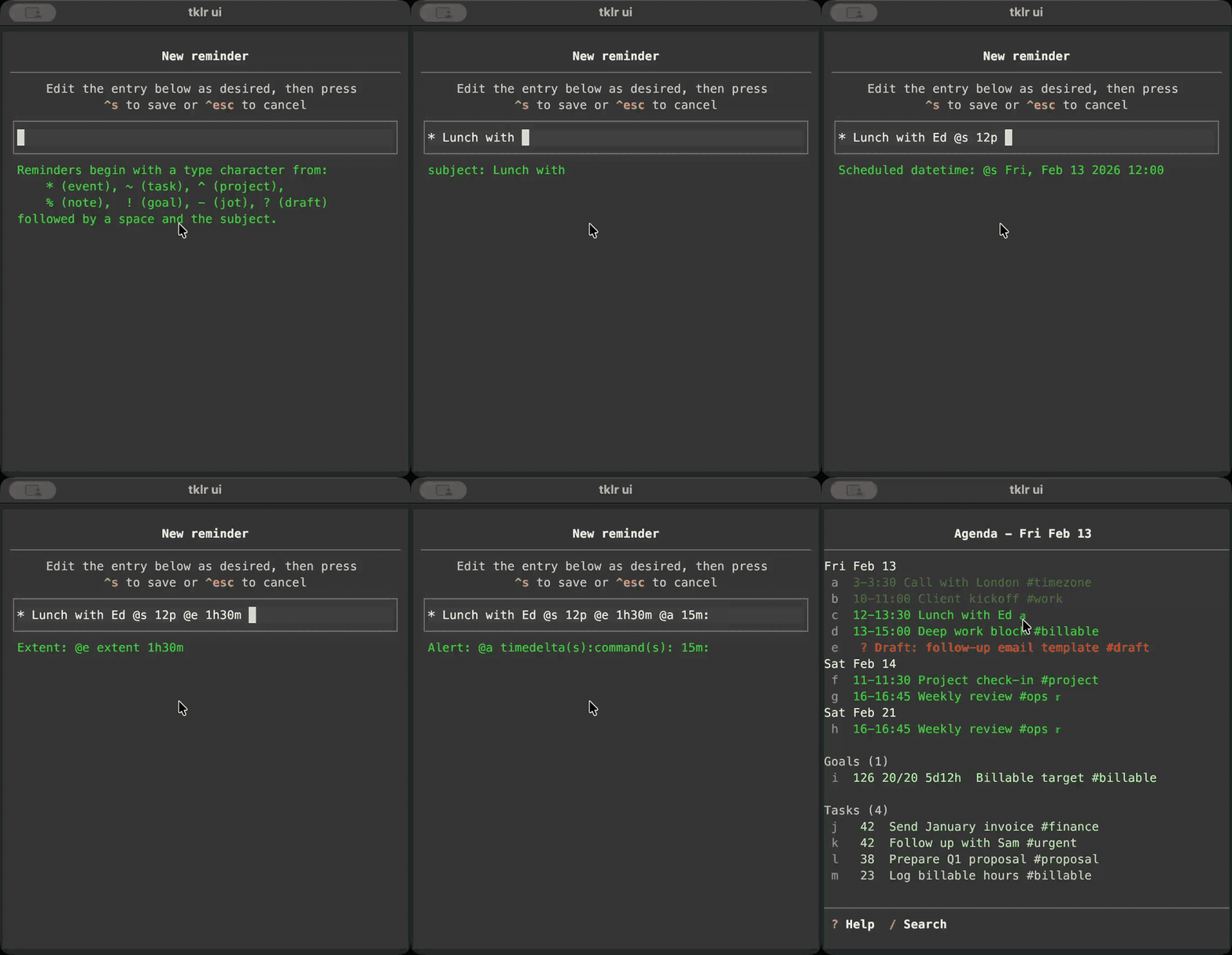
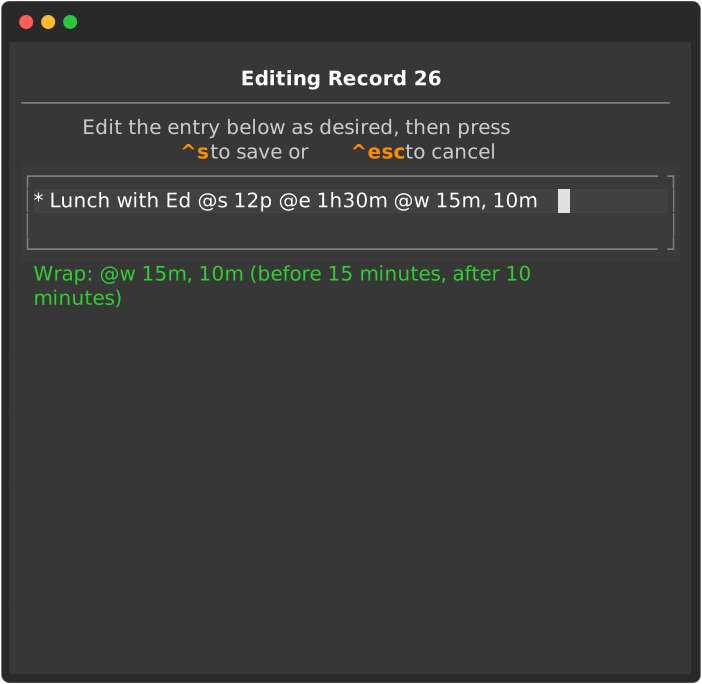
Rather than filling out fields in a form to create or edit reminders, a simple entry field is provided for text input together with a prompt area which provides instantaneous feedback.
This animation shows the entire process for creating a new reminder. The individual entry steps are listed below.
- the type character, here an
*for an event - the subject, "Lunch with Ed"
- the scheduled time,
@s 12p- today is assumed - the extent (duration) of the event,
@e 1h30m- an hour and thirty minutes - an alert,
@e 15m: n- fifteen minutes before the event, trigger a notification - the resulting event displayed in Agenda View
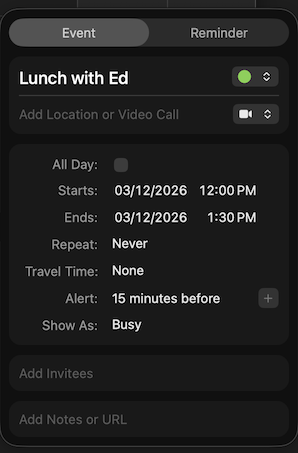
In comparison, here is how the reminder would be created using Apple's Calendar App.
- the type would be selected by clicking on the event tab
- the subject by clicking in the next entry area and entering "Lunch with Ed"
- the scheduled time by clicking in the calendar area and then selecting one by one:
- the year
- the month
- the month day
- the hour
- the minutes
- am or pm
- the ending time following the same one by one process
- the alert by clicking the tab and selecting 15 minutes before from a list
Tklr's form-free approach is particularly advantageous when entering dates and times.
- a time: today's date is assumed if a date is not specified, e.g.,
@s 11ais iterpreted as 11:00AM today. - a weekday: the next date with that weekday is assumed,
@s frimeans the next Friday on or after today. - a monthday only: the current month is assumed.
- a month and monthday: the current year is assumed.
The details are in 2.1. Datetimes.
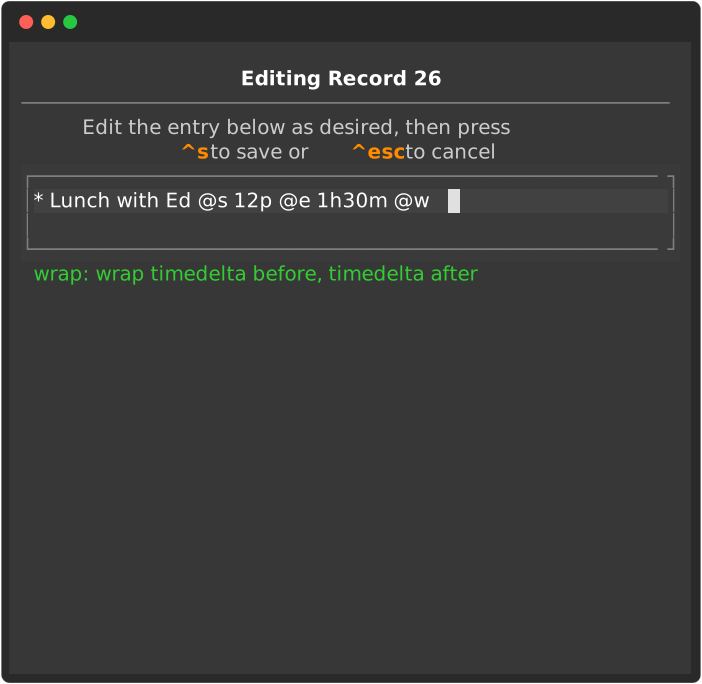
How does tklr support the other Calendar options?
- location:
@l General Store, Saxapahaw - all day: March 12 of this year,
@s 3/12 - not all day: 12pm on March 12 of this year,
@s 3/12 12p - repeat: weeky,
@r w - travel time, thirty minutes before the event and 40 minutes after the event
@w 30m, 40m - busy: include
@e 1h30m - not busy, omit
@e - invitees:
@i Sam Jones, Bill Smith - notes:
@d bring crackers and cheese - URL:
@g https://dagraham.github.io/tklr-dgraham/
How can you remember all the tklr options?
You don't need to. When you are entering a reminder, after you enter character @, the list of available @-keys will be listed below. Most are suggestive, e.g., s for "scheduled", d for "details", and so forth, but you can just enter one of the characters, e.g., @w, and the description will be listed in the feedback below.
All of the token keys are listed in 2.18. Token Keys.
1.2. Reminders to suit the purpose
tklr has seven types of reminders, each with a corresponding type character:
| item type | character | description |
|---|---|---|
| event | * | happens at a particular time |
| task | ~ | requires an action to complete |
| project | ^ | collection of related tasks |
| goal | ! | targets action at a specified frequency |
| note | % | information for future reference |
| jot | - | timestamped message to self |
| draft | ? | preliminary/unfinished reminder |
Here are some illustrations of how the various types.
- 1.2.1. An event: lunch with Ed (discussed)
- 1.2.2. A task: pick up milk
- 1.2.3. A repeating event: trash pickup
- 1.2.4. An event that repeats irregularly: dental appointment
- 1.2.5. A complicated but regularly repeating task: vote for president
- 1.2.6. An offset task: fill bird feeders
- 1.2.7. A note: a favorite Churchill quotation
- 1.2.8. projects: with and without prerequisites
- 1.2.9. A goal: interval training 3 times each week
- 1.2.10. A jot: taking a walk
- 1.2.11. A draft reminder: meet Alex for coffee - time to be determined
1.2.1. An event: lunch with Ed (extended)
* lunch with Ed
  @s 12p fri @e 1h30m
  @a 15m: n
The * makes this reminder an event with whatever follows until the next @ character as the subject. The @s attribute sets the scheduled or starting time for 12pm on the first Friday on or after today and the @e 1h30m attribute sets the extent for one hour and thirty minutes. This event will thus be displayed as occupying the period 12-1:30pm on the day of the event. The distinguishing feature of an event is that it occurs at a particular time and the @s attribute is therefore required.
Provided that tklr ui is running, @a 15m: n will trigger a built-in notify alert fifteen minutes before the start of the event which sounds a bell and posts a message on the tklr display showing the subject and time of the event.
1.2.2. A task: pick up milk
~ pick up milk
The beginning ~ type character makes this reminder a task with the following pick up milk as the subject.
Using an @s attribute is optional and, when specified, it sets the time at which the task should be completed, not begun. The @e attribute is also optional and, when given, is intepreted as the estimated time period required for completion.
1.2.3. A repeating event: trash pickup
* trash pickup @s 8a mon @n 1d @r w &w MO
This event repeats because of the @r w &w MO each week on Mondays. Because of the @n 1d a notice will be posted in Agenda View when the current date is within one day of the scheduled datetime or, in this case, on Sundays. This serves as a reminder to put the trash at the curb before 8am Mondays. Why not use a task for this? A task would require being marked finished each week to avoid accumulating past due instances - even when out of town with neither trash nor opportunity for placement at the curb.
1.2.4. An event that repeats irregularly: dental appointment
* dental exam and cleaning
  @s 2p feb 5
  @e 45m
  @+ 9am Sep 3
This event specifies an appointment for a 45 minute dental exam and cleaning starting at 2pm on February 5 and then again, because of the @+ attribute, at 9am on September 3.
Need to add another datetime to an existing reminder? Just add an @+ attribute with a comma separated list of as many additional dates or datetimes as needed.
1.2.5. A complicated but regularly repeating task: vote for president
~ vote for president
  @s nov 1 2020
  @r y &i 4 &w TU &d 2, 3, 4, 5, 6, 7, 8 &m 11
Here is another, more complicated, but still regularly repeating reminder. Beginning with November, 2020, this task repeats every 4 years on the first Tuesday after a Monday in November (a Tuesday whose month day falls between 2 and 8 in the 11th month).
This is a good illustration of the power of the dateutil library. Note that the only role of @s nov 1 2020 is to limit the repetitions generated by @r to those falling on or after November 1, 2020 and occur on that year or a multiple of 4 years after that year.
1.2.6. An offset task: fill bird feeders
~ fill birdfeeders @s 3p sat @n 1d @o 12d
Because of the @o 12d offset attribute, when this task is completed the @s scheduled datetime will automatically reset to the datetime that falls precisely 12 days after the completion datetime. Whether they are filled early or late, they will still need to be refilled 12 days after they were last filled.
Because of the @n 1d notice attribute, this task will not appear in the Agenda View task list until the current datetime is within one day of the scheduled datetime. Without this notice attribute, the default would have been to use the offset value as an implicit notice setting, i.e., not to display the task until the current datetime is within 12 days of the scheduled datetime.
Since the @o attribute involves resetting attributes in a way that effectively repeats the task:
@ocan only be used with tasks- Using
@oprecludes the use of@r
It is worth noting the different roles of two attributes in events and tasks.
- The scheduled datetime attribute describes when an event begins but when a task should be completed.
- The notice attribute provides an early warning for an event but postpones the disclosure of a task.
1.2.7. A note: a favorite Churchill quotation
% Give me a pig - #Churchill
  @d Dogs look up at you.
  Cats look down at you.
  Give me a pig - they look you in the eye
    and treat you as an equal.
  @b quotations
The beginning % makes this reminder a note with the subject, Give me a pig - #Churchill. The optional details attribute follows the @d and is meant to be more expansive - analogous to the body of an email. The hash character that precedes 'Churchill' in the subject makes that word a hash tag for listing in Tags View. The @b entry adds this reminder to the 'quotations' bin for listing in Bins View.
1.2.8. projects: with and without prerequisites
^ Build dog house @~ pick up materials &r 1 @~ cut pieces &r 2: 1 @~ assemble &r 3: 2 @~ sand &r 4: 3 @~ paint &r 5: 4 @d these tasks must be done in order, each is a prerequiste for the next^ Apply fertilizer @~ daffodils behind house &r 1 @~ azalias by entrance &r 2 @~ crepe myrtles by driveway &r 3 @d these tasks can be done in any order, none have prerequisites
The beginning ^ makes these reminders projects. The first is a collection of related tasks specified by the @~ entries. In each task, the &r X: Y requires attribute sets the integer X as the label for the task and sets the task labeled with integer Y as a requirement or prerequisite for X. E.g., &r 3: 2 establishes "3" as the label for assemble and "2" (cut pieces) as a prerequisite.
The second is also a collection of related tasks but none of the &r X entries specify either of the other tasks as a prerequisite. These tasks can be done in any order.
The labels provided by the &r entries are required, with or without prerequisites, for each of the component @~ tasks.
1.2.9. A goal: interval training 3 times each week
! interval training @s 2026-01-05 @o 3/1w
The beginning ! type character makes this reminder a goal with the following interval training as the subject. The @t 3/1w attribute is required and sets the target to be 3 completions during the period of one week starting at midnight on '2026-01-05', because of the @s attribute, and ending one week later at midnight on '2026-01-12', because of the '1w' target period.
When a goal is created, the attribute @k 0 is automatically added to indicate that the current completion count is zero. When a completion is recorded for the goal, this count is automatically increased by one. This process continues until
- the period allowed for completing the goal expires or
- the completion count reaches the target number of completions
In either case, @k is reset to zero and @s is reset to the previous value plus the period allowed for completion of the goal, i.e, to the end of the period originally allowed for completion.
1.2.10. A jot: taking a walk
Tracking where a resource goes is the key to managing any scarce resource - your time is no exception. A jot is a reminder type designed to facilitate this purpose. It provides a way of quickly recording a jot of time-stamped information as a message to self. It is sufficiently different from the other reminder types to warrant some discussion before giving an example.
Imagine that tklr is running on your computer and that, in the midst of your hectic day, you could reach over, press “N” to create a new reminder, enter “-“ to make it a jot and add a subject - a brief phrase - just enough to trigger your memory later. Then press Ctrl+S to save - a timestamp will automatically be added.
What might you do with these jots? As is, these jots can provide a record of what you were doing and when. At the cost of a few seconds per jot you can have a daily record of when and what you were doing or thinking. Press “J” to see a list of all your jots grouped by week and weekday and, as with all other reminder views in tklr, tagged with lower case letters, a, b, c, …. for instant access.
When you have time, you might want to:
- flush out the subject or add a
@ddetails entry to provide extra detail. - record the time spent. You could, e.g., add
@e 1h15, to indicate that an hour and fifteen minutes of your precious time was spent on whatever you were doing when the jot was recorded. - record the particular use to which the jot applies, e.g.,
@u exercise.walkingto indicate that this time should be attributed to the use “exercise.walking”. Press “U” whenever you like to see a report of your Jot Uses with totals of your time spent by month and use. - add a hash-tag to the subject or the details of a jot to make it easy to find in the Hash-Tags View.
- convert it to another type of reminder. E.g.
- book a lunch reservation for Fridaymight be converted to the event* lunch with Ed @s fri 1pmwhen you make the reservation.
Underneath the details is a very simple idea - in the heat of battle when every second counts, jot down just enough to trigger your memory later when things have calmed down.
- taking a walk
Here's an example. The beginning - type character makes this reminder a jot with the following taking a walk as the subject. This much was jotted down before the walk and saved.
- taking a walk @s 2026-01-05 13:14
The @s 2026-01-05 13:14 timestamp was automatically added by tklr as the reminder was being saved.
- taking a walk @s 2026-01-05 13:14
  @e 1h15m @u exercise.walking
Later in the day, after the walk was finished and the jots for the day were being reviewed, the time spent, @e 1h15m, and the use, @u exercise.walking, were added.
Note that exercise.walking would serve to differentiate this form of exercise from, say, exercise.interval_training, and thus avoid adding "apples and oranges" when reporting the use totals.
1.2.11. A draft reminder: meet Alex for coffee - time to be determined
? Coffee with Alex @s fri @e 1h
The beginning ? type character makes this a draft reminder. This can be changed to an event when the details are confirmed by replacing the ? with an * and adding the time to @s fri.
This is a reminder that is not yet finished and, in almost every respect, will be ignored by tklr. The exception is that it will appear highlighted on the current day in Agenda View until it is revised. It can be changed to an event when the details are confirmed by replacing the ? with an * and adding the time to @s.
1.3. Mouse-Free navigation
Each of the main views in tklr can be opened by pressing a single key - the first letter of the view’s name.
| View | Key | Displays |
|---|---|---|
| Agenda | A | events, goals, tasks |
| Bins | B | Tree view of Bins |
| Completions | C | Completion datetimes for completed tasks |
| Find | F | Case insensitive search in subjects and details |
| Goals | G | Case insensitive search in subjects and details |
| Hash-Tags | H | List reminders with tags grouped by tag |
| Jots | J | Jots by week and weekday |
| Earlier | E | The most recent instance of reminders before today |
| Modified | M | All reminders sorted by modified timestamp (newest first) |
| Later | L | The next instance of reminders after today |
| Query | Q | List matches for a specified query |
| Remaining Alerts | R | List remaining alerts for the today |
| Tasks | T | List tasks grouped by category |
| Jot Uses | U | Jots with totals by month and use |
| Weeks | W | Scheduled reminders by week and weekday |
Each of these views displays a vertical list of reminders, with each reminder row beginning with a tag from “a”, “b”, …, “z”, followed by the pertinent details of the reminder including its subject. When necessary, lists are split into pages so that no more than 26 reminders appear on any one page and the left and right cursor keys are used to move back and forth between pages.
The view keys and the list tags are the key to navigating tklr.
On any page, pressing the key corresponding to a tag will open a display with all the details of the corresponding reminder. This is worth emphasizing. You don’t need the cursor keys or the mouse to select a reminder - just press the key corresponding to its tag.
When the details of reminder are being displayed, pressing enter will open a menu of various commands applicable to the selected reminder, pressing the key corresponding to the tag of another reminder will switch the details display to that reminder or pressing the upper case letter corresponding to another view will switch to that view.
Everything you might want to do to a reminder, to edit, finish, reschedule, delete or whatever is available using these steps:
- press the key corresponding to the tag of the reminder you want to select
- press
enterto open the menu of commands for the selected reminder - press the first letter (any case) of the desired command or
escapeto cancel and close the commands menu
1.4. Agenda View: Your daily brief
Agenda view displays
- The next few days of events beginning with today
- Active goals ordered by their priority
- Available tasks ordered by their urgency
Times are displayed in the screenshots using 24-hour notation. An option can be set to display times using am/pm notation instead.
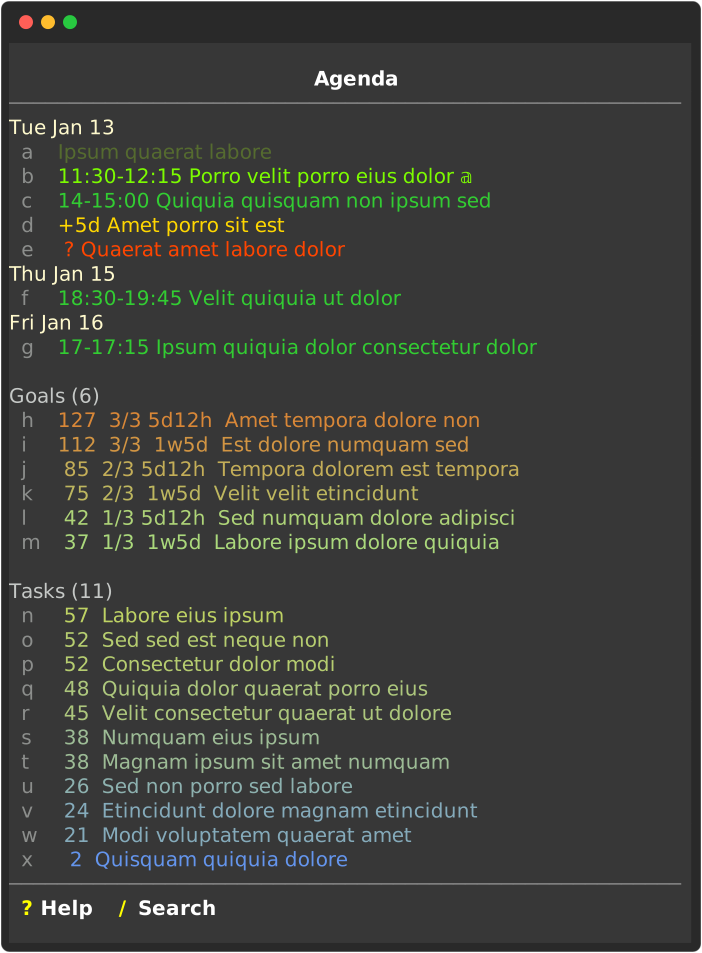
While the listing of events begins with the current day, any all-day events or events whose ending times have already passed such as the one tagged a will be dimmed. Additionally an event, such as the one tagged b whose active period overlaps the current moment will be highlighted.
The first day of events will always include any notices of upcoming events or draft reminders needing completion in addition to any scheduled events for today. In this case the reminder tagged d indicates that there is an event beginning in 5 days (+5d) with a subject beginning with "Amet porro ..." and a notice attribute, @n x, in which x > 5d. This attribute is the reason this notice of the event is being displayed before its scheduled datetime - it will continue to be displayed on the first day (current date) of Agenda View each day until the day of the event.
There is also a draft entry tagged e and displayed in red. This is simply a reminder whose item type is ?. This is used to flag a reminder as incomplete as would be the case, e.g., if a final datetime for the event had not yet been finalized. Draft reminders are also displayed on the current, first day in Agenda view until the item type is changed.
The list for *goals* includes all goals which have not been completed on the current date, sorted and color coded by their *priority*, which is listed in the first column after the tags. The details for precisely how *priority* is calculated will be described later but the basic idea involves comparing
- the rate at which completions would currently need to occur to complete the goal
- the rate originally specified in the goal
The higher the current rate relative to the original, the higher the *priority*.
The list for *tasks* includes all tasks with the possible exception of tasks with both an `@s` (specifying a *due datetime*) and an `@n` entry (specifying a *notification period*). Suppose, for example, that `@s 2026-01-30` and `@n 2d`. The role of these combined entries is to say that the task needs to be finished by `2026-01-30` but you don't want to be bothered about it until two days before that date. This task won't appear in the list until `2026-01-28`.
Tasks are sorted by their *urgency*. This calculation is fairly complicated and will be described later. Many factors are involved including the priority of the task, its due datetime, how many tags it has, whether it has a details attribute and so forth. The *weights* attached to these and other characteristics are options which can be set in the user configuration file.
*Agenda* is the default view and represents the place to go for what you need to know right now.
1.5. Weeks View and friends
Weeks View is dedicated to displaying each instance of your scheduled reminders one week at a time with a busy bar at the top to show the busy days during the week at a glance followed by a day by day listing of the scheduled reminders.
Two supporting views are limited to displaying a single instance of each scheduled reminder. Later View, bound to L, lists the first instance occurring on or after the current date in ascending order and Earlier View, bound to E, lists the most recent instance occurring before the current date in descending order. When did you last have your car serviced? Earlier View is the place to look. When is your next dental appointment? Later View has the answer.
Two other views list reminders by datetime but not by the scheduled one. Modified View, bound to M, lists all reminders, whether or not they have an @s entry, by the modified timestamp in descending order (newest first). Want to check a reminder you just modified? It will be first in Modified View. In contrast, Completions View only lists tasks with recorded completions by the completed datetime in descending order (newest first).
A final datetime listing is provided the scheduled category in Tasks View which lists scheduled tasks by their due datetimes in ascending order (oldest first).
In all of these views other than Weeks, each row begins with a numeric date that respects your config.toml settings for dayfirst, yearfirst and two_digit_year.
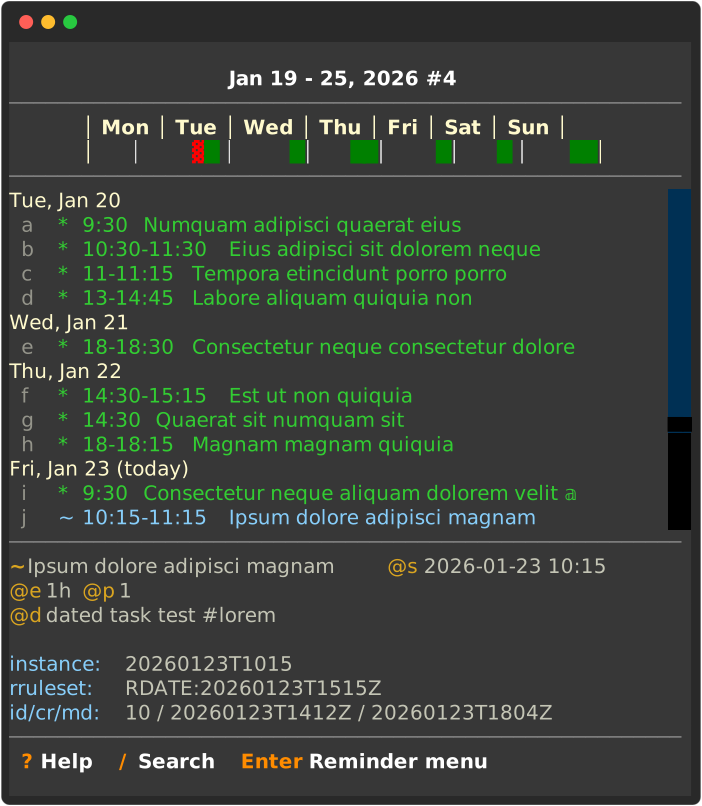
Press W to open Weeks View on the current week or press D and enter a date to open the view on the week containing that date. The header displays the date range, year and week number for the displayed week. Left and right cursor keys shift the displayed week backward or forward by one week. Pressing the shift key at the same time increases the shift from one to four weeks. Pressing the space key will jump back to the current week.
As with the other tagged views, pressing the key corresponding to the tag of a reminder opens a panel with the details of that reminder. In this case, the details for tag j are being displayed.
The busy bar underneath the header provides graphical illustration of the busy times for events during the week. The area under each weekday name has spaces for five blocks. The first (furthest to the left) will be colored orange if one or more all day events are scheduled for that day. The next four blocks correspond to the four 6-hour periods during the day beginning with 00:00 - 05:59 and ending with 18:00 - 23:59 - night, morning, afternoon and evening.
The block corresponding to a period will be green if the scheduled time for an event occupies any part of the period. E.g., a single event scheduled for 05:00 - 07:00 would cause both the first and second blocks for that day to be colored green. A block is changed from green to red if the busy periods for two or more events overlap and thus conflict. The red block for Tuesday, e.g., reflects the conflict during the period 11:00 - 11:15 by the events tagged b and c.
Note that only events with an extent contribute to the busy bar. E.g., the event tagged i on Friday has no extent and thus no effect on the busy bar "morning" slot for that day. Similarly, the task tagged j whose details are displayed, is scheduled for 10:15 - 11:15 and yet, being a task, also has no effect on that "morning" slot.
1.6. Jots and Jot Uses Views: Where did the time go
These screenshots reflect a configuration setting that rounds reported @e times up to the next integer multiple of 6 minutes and thus reports times in hours and tenths.
The examples focus upon personal uses of time such as exercise and meditation but they might equally well have displayed professional uses involving different projects or clients.
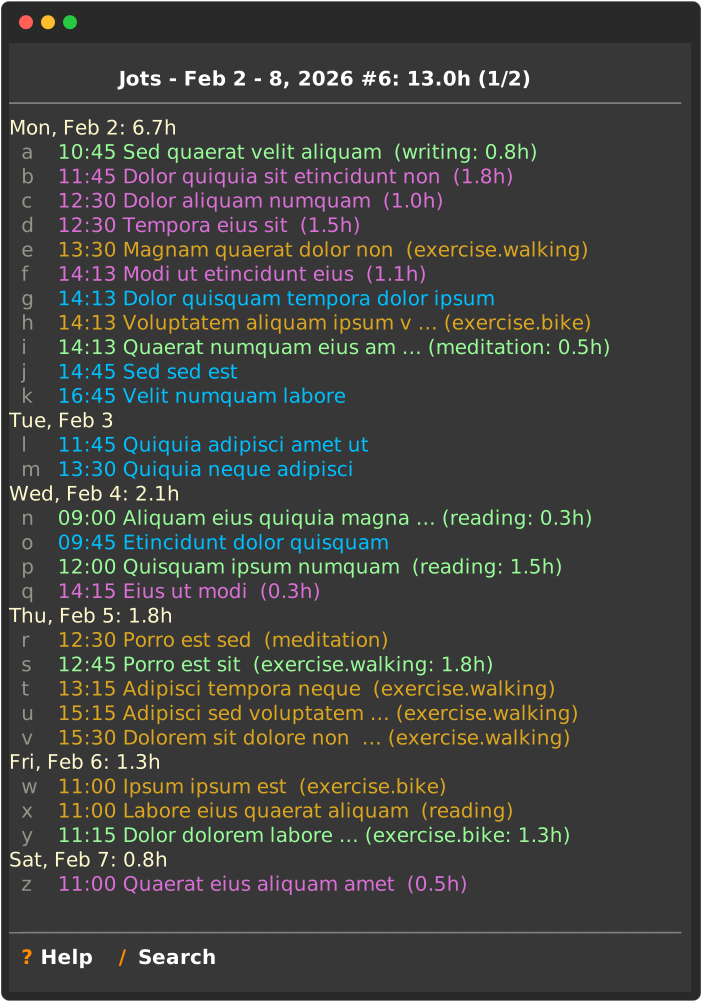
Jots View is similar to Weeks View - reminders are grouped by week and then week day with the same key bindings used for navigation. The jots are displayed in different colors for
- those with neither
@enor@uentries - those with only
@eentries - those with only
@uentries - those with both
@eand@uentries
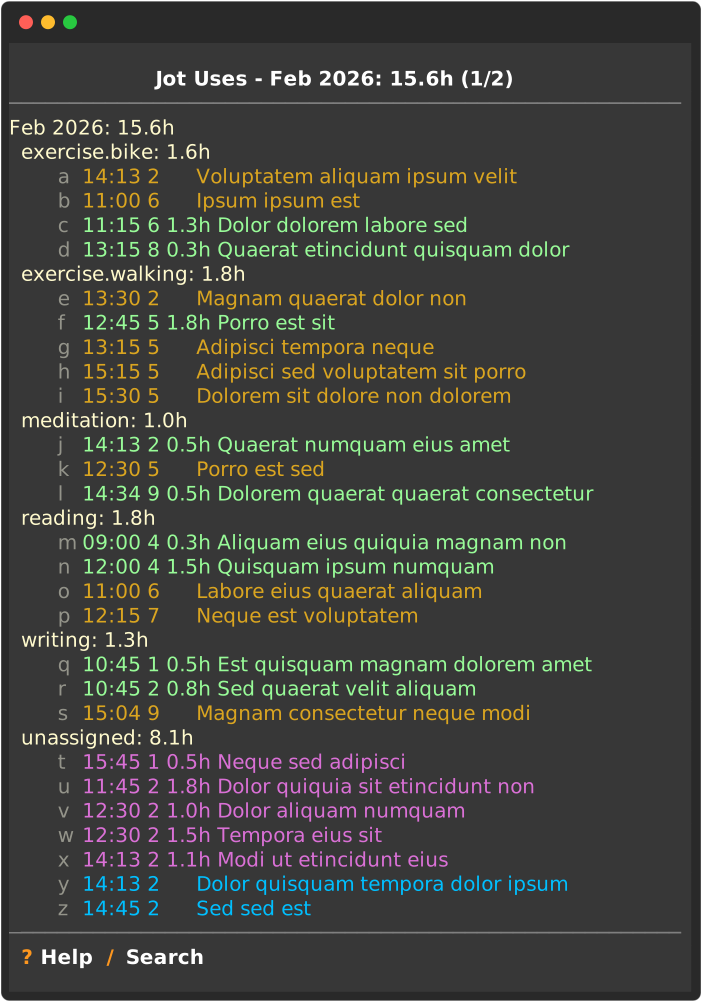
Jots Uses View groups by month and use. Jots without an entry for @u are grouped under unassigned.
The listing for each jot gives
- tag
@s entryhours:minutes@s entrymonth day@e entry in hours and tenths if given else blank
- subject
% tklr uses report --use exercise
Jot Uses - Jan 2026 - Feb 2026: 3.9h
Jan 2026: 0.5h
  exercise.bike: 0.5h
    14:13 26 0.5h Ut tempora consectetur
  exercise.walking
    12:30 31      Ut porro dolor non ut
Feb 2026: 3.4h
  exercise.bike: 1.6h
    14:13 2      Voluptatem aliquam ipsum velit
    11:00 6      Ipsum ipsum est
    11:15 6 1.3h Dolor dolorem labore sed
    13:15 8 0.3h Quaerat etincidunt quisquam dolor
  exercise.walking: 1.8h
    13:30 2      Magnam quaerat dolor non
    12:45 5 1.8h Porro est sit
    13:15 5      Adipisci tempora neque
    15:15 5      Adipisci sed voluptatem sit porro
    15:30 5      Dolorem sit dolore non dolorem
The CLI version is similar. This one using the command
tklr uses report --use exercise
limits the uses to those containing a match for "exercise".
% tklr uses report --use meditation --verbose
Jot Uses - Jan 2026 - Feb 2026: 1.0h
Jan 2026
  meditation
    14:13 26      Dolore aliquam consectetur
                  u without e  #lorem
Feb 2026: 1.0h
  meditation: 1.0h
    14:13 2 0.5h Quaerat numquam eius amet
                 u and e #lorem
    12:30 5      Porro est sed
                 Porro amet quisquam eius amet labore
                 dolor. Ut labore ut quaerat dolorem
                 magnam quiquia. Quisquam non est
                 quisquam dolor neque tempora velit.
                 Dolore ut numquam sit velit aliquam
                 ipsum. #lorem #amber
    14:34 9 0.5h Dolorem quaerat quaerat consectetur
                 u and e #lorem
This one shows uses matching "meditation" and, because of the --verbose argument, also displays the @d details attribute indented under the subject.
1.7. Jots and GTD
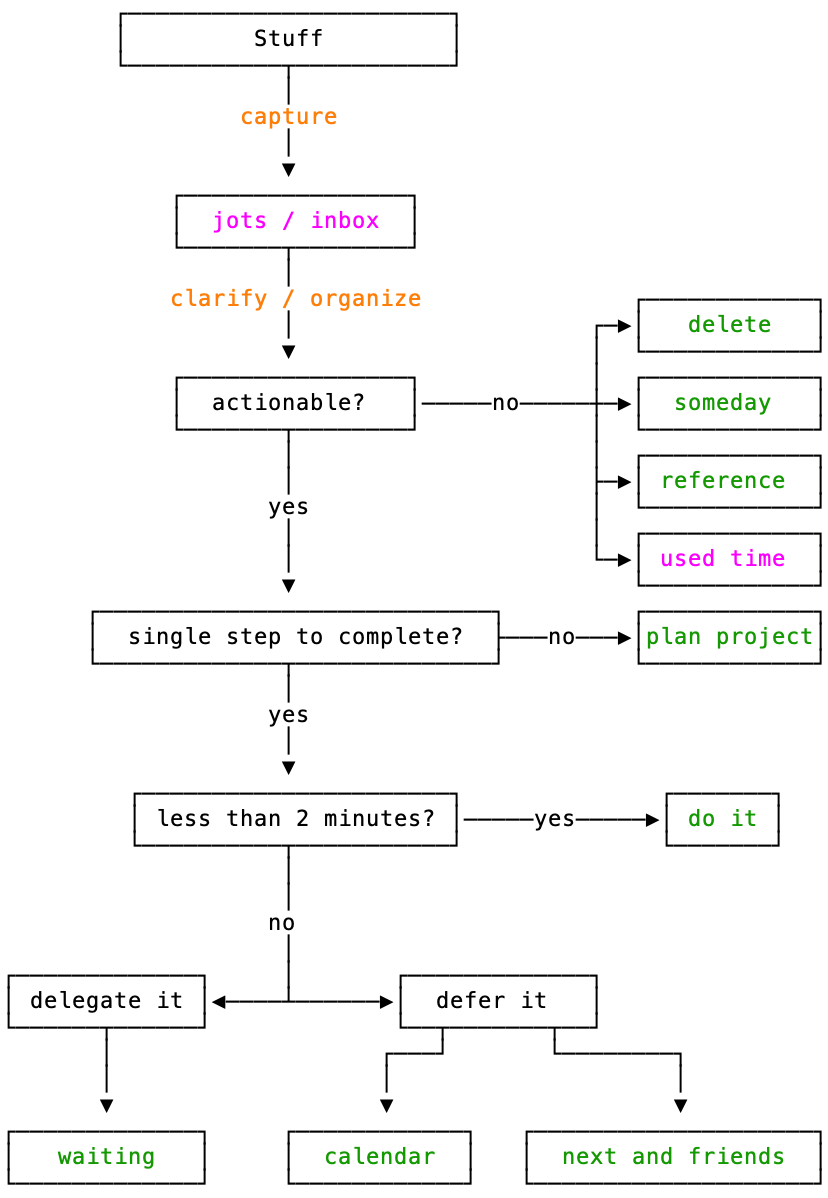
GTD refers to Getting Things Done - the title of a justly famous 2001 book by David Allen. The illustrated flowchart is a slightly altered version of the one in his book. Changes to the original are colored magneta and outcomes in which tklr plays a role are colored green.
Both the flowchart and the connection to tklr mainly involve the first three of the five steps emphasized by Allen:
- Capture
- Clarify
- Organize
- Reflect
- Engage
Capture
Get the stuff out of your head and into a bucket you can trust.
Your concious mind is made to focus not to store. It keeps reminding you of things you're subconciously trying not to forget whether or not they are relevant to what you are trying to do and, the more you are trying not to forget, the less processing power you have left for the task at hand. These words scarcely do justice to the importance of this observation.
In tklr, the "bucket you can trust" is jots and capture is the stage devoted to moving the stuff from your head to jots.
Clarify and Organize
With your stuff safely stored in jots the next two stages are concerned with clarifying and organizing them. The phrase In to Empty is a motto in GTD, meaning that the result of applying the illustrated work flow is that every inbox item will have gone into one of the green boxes, leaving the inbox empty. There is, however, one destinaton in tklr for jots not imagined in GTD - the magenta used time box for records of time spent. Let's step through the flow and see how all this works.
Actionable? No
To be "actionable" would mean that the item is a task and one that should be completed as soon as possible.
- delete
- Is the jot worth saving? If not delete it.
- someday
- Is the jot something that might be actionable someday? If so, change the reminder type to
~(task), remove the scheduled@sentry and set the context to@c someday. - reference
- Does the jot represent useful information that you might want to reference later? If so, change the reminder type to
%(note) and "file" it in an appropriate bin using@b. - used time
- Does the jot represent a use of time that you want to preserve? If so, leave the reminder type as is,
-(jot) and set the extent using@eand/or the use using@uaccordingly. Adjust the scheduled@sentry if necessary to correspond to the relevant datetime. Having either an@eor an@uentry effectively removes the jot from further consideration in the workflow.
Actionable? Yes
- single step to complete?
- If not, start a project for it. Change the reminder type to
^(project), remove the scheduled@sentry and consider adding a component task@~for the first step to take on the project. - less than 2 minutes?
- If so, do it. Then change the reminder type to
~(task) and add the finished datetime using@f. - delegate it
- Can this be deligated to someone. If so, change the reminder type to
~(task) and set the category@c waitingand, perhaps, add the name of the person to whom the task was assigned to the details,@d. - defer it - calendar
- Should this be deferred to a specific date in the future? If so, change the reminder type to
~(task), change the due datetime in@sand set the context to@c scheduled. - defer it - next and friends
- At this point we have a task that takes a single step to complete, takes more than two minutes to complete, couldn't be deligated and shouldn't be scheduled for some future date. Deferred to the next available opportunity for completion. This is the meaning of the category next but other categories might similarly call for "next available opportunity" completion but add further specficity. In each case, the reminder type should be changed to
~(task), the scheduled@sentry should be removed and the category should be set to@c nextor some variant. Here are a few illustrative variants:@c home- A next task best completed at "home".
@c office- A next task best completed at "office".
@c errands- A next task best completed when running "errands".
@c email- A next task best completed when doing "email".
1.8. GTD and Task View
Task View is designed specifically with GTD in mind. It begins with a tagged list of relevant contexts (those having at least one applicable reminder), each followed by its reminder count in parentheses. Tasks with @c are grouped under that context; tasks without @c but with @s are grouped under the implicit context scheduled; tasks with neither @c nor @s are grouped under the implicit context inbox. Jots (-) with neither @e nor @u are also grouped under inbox. The context order is inbox, waiting, next, other contexts alphabetically, then someday and scheduled. Pressing a context tag opens the corresponding tagged reminder list; pressing a reminder tag opens its details.
1.9. Bins and Hash-Tags Views: Organizing your reminders
Tklr provides two complementary methods for organizing your reminders:
- Using the attribute
@bto attach the the name of a bin to a reminder and the related Bins View - Using a hash-tag, i.e.,
#followed without spaces by an arbitrary word, in either the subject or the details attribute of reminders and the related Tags View
1.9.1 Bins View
The Bins View displays a hierarchical, tree view of bins and reminders.
Think of bins as directories, reminders as files and Bin View as a file browser. The main difference is that reminders can belong to more than one bin or to none at all.
As an illustration of the power of being able to place a reminder in many bins consider a note describing a visit to Lille, France on November 11, 2025 which involved meeting a dear friend, Mary Smith for lunch. This note might belong to all of these bins:
- travel (in activities)
- 2025:11 (in journal)
- Mary Smith (in people:S)
- Lille (in places:France)
Many note taking applications provide a means for establishing links between notes. The terms Zettelkasten and Second Brain come to mind. A different approach is taken in tklr where bins serve as containers for both reminders and other bins. While a system of links between reminders might be broken by the removal of a reminder, when a reminder is removed from tklr, it simply disappears from the relevant bin membership lists. Bins themselves and their membership lists are otherwise unaffected.
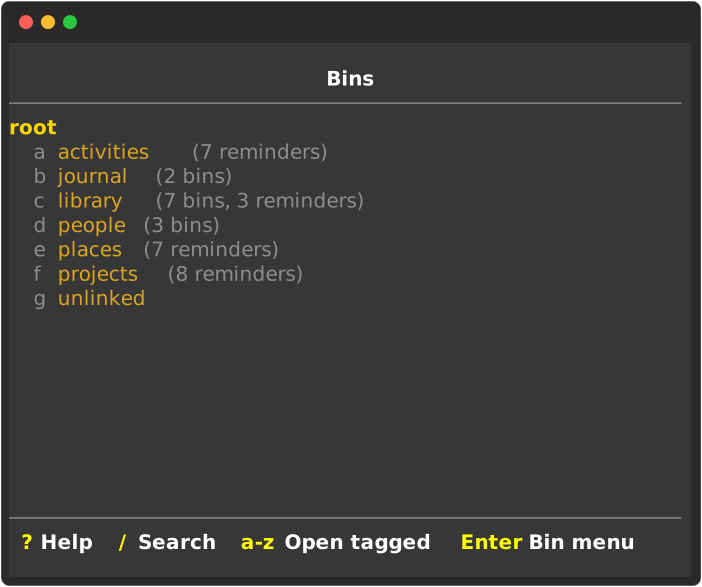
These are the important facts about Bins:
- Bin names are unique
- A bin can contain many other bins (children)
- A bin can belong to at most one other bin (parent)
- A reminder can belong to one or more bins by adding an
@b NAMEattribute with a unique NAME for each
This is the opening, root level in Bins view.
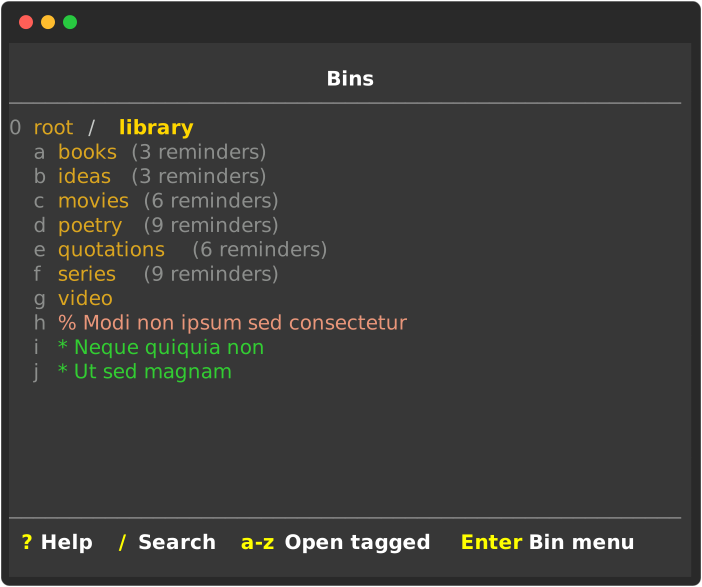
Press c to open the library bin with its tagged list of children which now includes both bins and reminders.
- Use the tag for a bin to open the bin
- Use the tag for a reminder to display the details of the reminder
- Use tag 0, root,in the bread crumb trail to go up to that bin
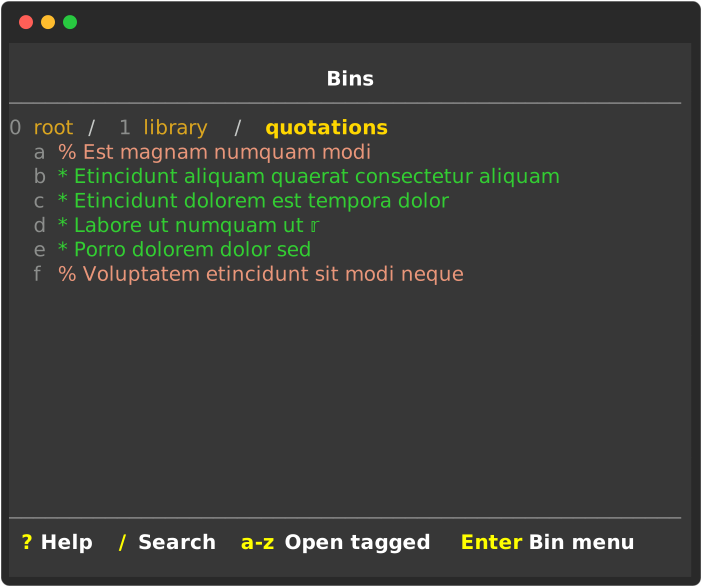
Press e to open the quotations bin with its tagged list of children which now includes only reminders.
- Use the tag for a reminder to display the details of the reminder
- Use tag 1, library, in the bread crumb trail to go up to that bin
- Use tag 0, root, in the bread crumb trail to go up to that bin
1.9.2 Hash-Tags View
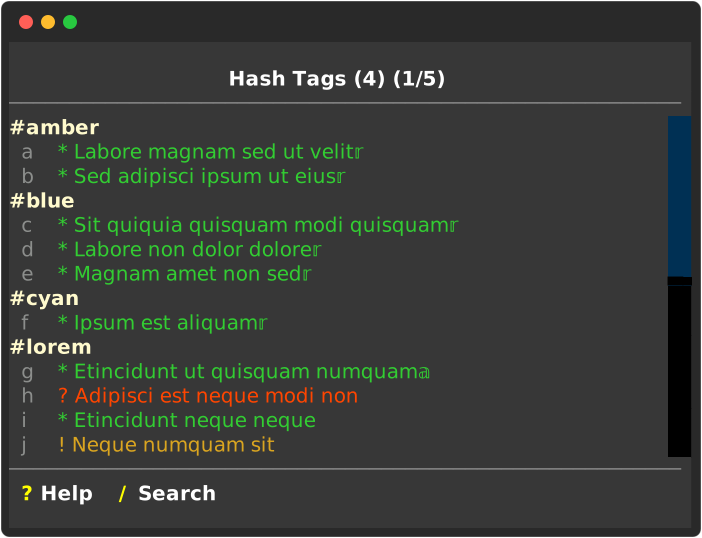
Press T to open the Tags View which lists reminders with hash-tag entries grouped by the tag name.
1.10. Query and Find Views: Where’s Waldo
What is the name of that plumber we used and liked so much?
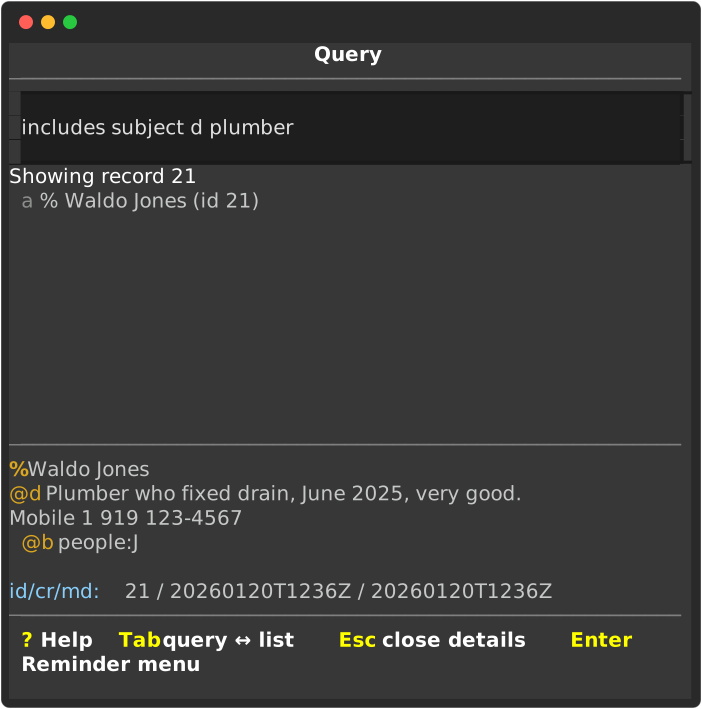
Just press Q to open the Query View, enter your query at the prompt and press Enter.
This query asks for reminders that include in their subject or their details a match for plumber and found one matching reminder.
The key corresponding to the tag, a, was pressed to display the details of the match. Note that Plumber is in the details and was matched despite being capitalized.
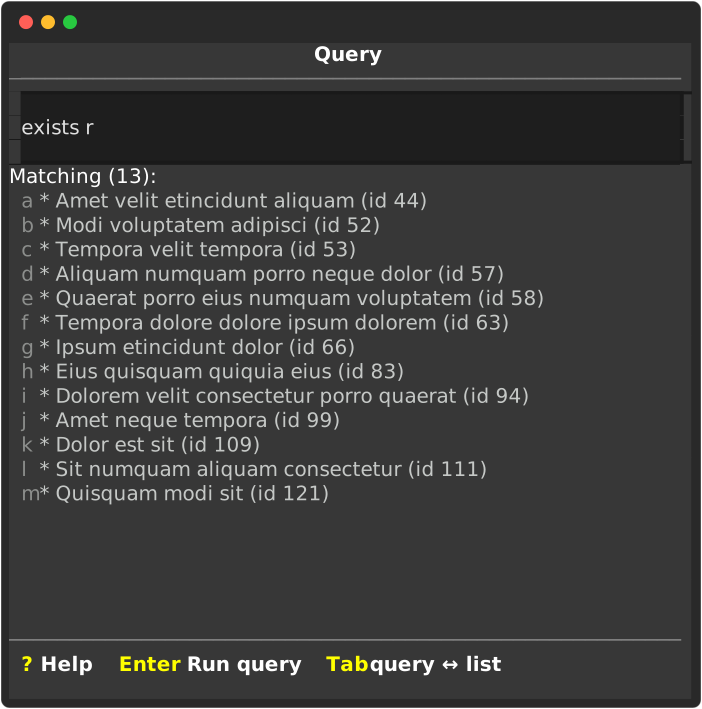
Here the query asks for reminders that pass the exists test for the attribute r, i.e., for all reminders with an @r attribute.
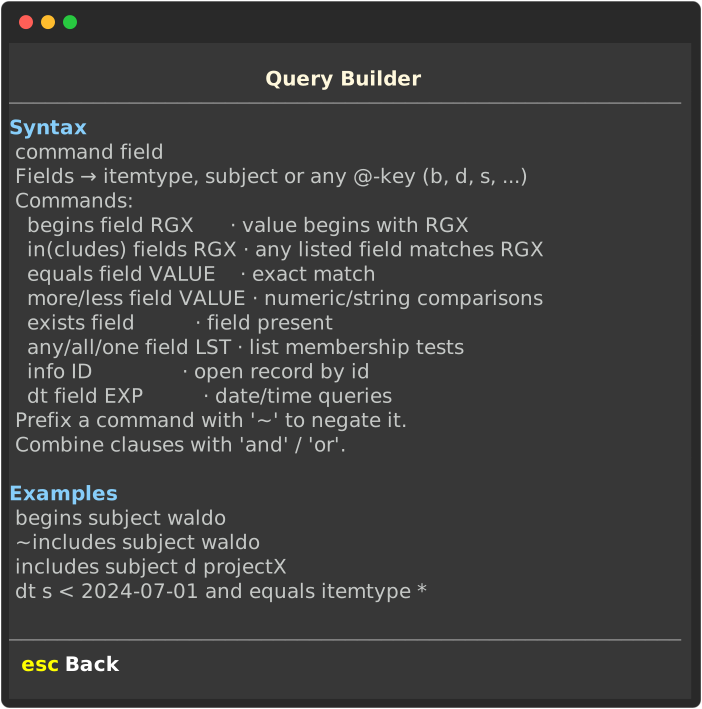
Press ? to display the help information for queries.
Find View. Looking for a case-insensitive match for a word in either the subject or the details of a reminder is such a common need that tklr provides a short-cut for this query - Find View. Instead of pressing Q and entering
includes subject d plumber
you can press F to open the prompt for Find View and just enter
plumber
What happens here?
And here?
1.11. SQLite3 Data Store
SQLite offers tangible advantages over TinyDB’s JSON store which - used for tklr’s predecessor - especially at the required scale. The embedded SQL engine keeps queries fast even as data grows, thanks to indexed storage and compiled query plans rather than repeatedly parsing whole JSON file. Reliability improves because SQLite wraps writes in ACID transactions so crashes or concurrent edits won’t corrupt the data, whereas TinyDB depends on rewriting the JSON blob. Finally, SQLite’s standard file format means other tools (command-line clients, BI dashboards, scripting languages) can open the same .db directly or even run read-only analytics in parallel, something that’s awkward with a bespoke JSON structure.
2. Details
2.1. DateTimes
Intelligent parsing of the user’s entry of a datetime is supported. Suppose it is 10am on Thursday, November 6 2025 in the US/Eastern timezone. When a datetime is entered it is interpreted relative to the current date, time and timezone. When entering the scheduled datetime for a reminder using @s, the following table illustrates how various entries would be interpreted and the resulting user feedback.
| @s entry | interpretation | user feedback |
|---|---|---|
| wed | 2025-11-12 | Wed, Nov 12 2025 |
| now | 2025-11-06 10:00 EST | Thu, Nov 6 2025 10:00 EST |
| today | 2025-11-06 | Thu, Nov 6 2025 |
| 9a | 2025-11-06 09:00 EST | Thu, Nov 6 2025 09:00 EST |
| 9a fri | 2025-11-07 09:00 EST | Fri, Nov 7 2025 09:00 EST |
| 10 9p z none | 2025-11-10 21:00 | Mon, Nov 10 2025 21:00 |
| 3p z US/Pacific | 2025-11-06 18:00 EST | Thu, Nov 6 2025 18:00 EST |
| 10 13:30 z CET | 2025-11-10 07:30 EST | Mon, Nov 10 2025 07:30 EST |
| 10 20h z none | 2025-11-23 20:00 | Mon, Nov 10 2025 20:00 |
Datetimes entered with “z none” and dates are naive - have no timezone information. Datetimes entered with “z TIMEZONE” are interpreted as aware datetimes in TIMEZONE. Datetimes without a “z” entry are also interpreted as aware but in the timezone of the user’s computer. Aware datetimes are always reported using the timezone of the user’s computer, wherever it might be. Times can be entered using the suffix of either a/p or am/pm for AM/PM times or h for 24-hour times. Times are reported using the preference of the user, here as 24-hour times.
Why would you want to use a “z” in specifying a time? Suppose a colleague in Europe at asked you to call Friday at 18:00 CET time. Then setting “@s fri 18h z CET” will schedule your reminder for the correct time to call wherever you might be. In the US/Eastern timezone, this would be “Fri, Nov 12 2025 12:00 EST”. As a second example, suppose you want to take a daily medication at 4pm in whatever timezone you happen to be. Then you will want to schedule the reminder for “@s 4p z none”.
When dates and datetimes are recorded, aware datetimes are first converted to UTC time and then stored with a “Z” appended. E.g., the “3p z US/Pacific” datetime would be interpreted as “2025-11-06 18:00 EST” but would be recorded as “20251106T2300Z”. Dates and naive datetimes are recorded without conversion and without the trailing “Z”. When aware datetimes are displayed to the user, they are first converted to the timezone of the user’s computer. Thus the “PST” example would be displayed as scheduled for 6pm today in US/Eastern. Dates and naive datetimes are displayed without change in every timezone.
When an @s scheduled entry specifies a date without a time, i.e., a date instead of a datetime, the interpretation is that the task is due sometime on that day. Specifically, it is not due until 00:00 on that day and not past due until 00:00 on the following day. The interpretation of @b and @u in this circumstance is similar. For example, if @s 2025-04-06 is specified with @b 3d and @u 2d then the task status would change from waiting to pending at 2025-04-03 00:00 and, if not completed, to deleted at 2025-04-09 00:00.
Note that times can only be specified, stored and displayed in hours and minutes - seconds and microseconds are not supported. Internally datetimes are interpreted as having seconds equal to 0.
The dayfirst and yearfirst settings in config.toml are used to resolve ambiguous date entries involving 2-digit components. E.g., the interpretation of the date “12-10-11” with the various possible settings for dayfirst and yearfirst:
| dayfirst | yearfirst | date | interpretation | standard |
|---|---|---|---|---|
| True | True | 12-10-11 | 2012-11-10 | Y-D-M ?? |
| True | False | 12-10-11 | 2011-10-12 | D-M-Y EU |
| False | True | 12-10-11 | 2012-10-11 | Y-M-D ISO 8601 |
| False | False | 12-10-11 | 2011-12-10 | M-D-Y US |
The defaults: dayfirst = false and yearfirst = true correspond to the Y-M-D ISO 8601 standard.
A related setting ampm
2.2. TimeDeltas
An timedelta is just a period of time and is entered in tklr using expressions such as
| entry | period of time |
|---|---|
| 2h | 2 hours |
| -2h | - 2 hours |
| 1w7d | 1 week and 7 days |
| 2h30m | 2 hours and 30 minutes |
| 1m27s | 1 minute and 27 seconds |
Note that w (weeks), d (days), h (hours), m (minutes) and s (seconds) are the available units for entering intervals. Seconds are ignored save for their use in alerts - more on alerts later.
Arithmetic. A timedelta, D, can be added to a datetime, T, to get a datetime, T + D, that will be after T if D > 0 and before T if D < 0. Similarly, one datetime, A, can be subtracted from another, B, to get a timedelta, T = B - A, with T > 0 if B is after (greater than) A and T < 0 if B is before (less than) A.
One example of this arithmetic is that an event with @s 10a fri @e 1h30m will span the period 10:00 - 11:30 on Friday, the ending datetime corresponding to the sum of the scheduled datetime and the extent timedelta.
2.3. Scheduled datetime
For the discussion that follows, it will be assumed that the current date is 2025-10-01 and that the scheduled datetime for the illustrative reminder is
@s 2025-10-21 10:00am
2.4. Extent timedelta
The entry @e 2h30m would set the extent for the reminder to two hours and 30 minutes.
If the reminder were an event, this would schedule the “busy time” for the event to extend from 10am until 12:30pm.
For a task, this same entry would indicate that attention to completing the task should begin no later than 10am and that 2 hours and 30 minutes is the estimate of the time required for completion. The period from 10am until 12:30pm is not displayed as a busy time, however, since the task could be begun before or after 10am and could take more or less than 2 hours and 30 minutes to complete. For a task, both @s and @e are best regarded as estimates.
For a project, this same entry would similarly indicate that attention to completing the project should begin no later than 10am and that two hours and 30 minutes is estimated for completion subject to additional times specified in the jobs. A job entry containing &s 2d &e 3h, for example, would set the scheduled time for this job to be two days after the @s entry for the project and would add three hours to the estimate of total time required for the project.
2.5. Notice timedelta
The entry @n XYZ where XYZ is a positive timedelta specifies that a notice for the reminder should begin to be noticed on the date in which scheduled - XYZ falls. For the example, adding @n 1d12h would cause the reminder to be noticed beginning on
2025-10-21 10am - 1d12h = 2025-10-19 10pm
If the reminder is an event, then the agenda view would display an notice for the event beginning on 25-10-19 and continuing on the 25-10-20, i.e., from the date of the notice through the date before the scheduled datetime. For an event think of this notice as a visual alert of the proximity of the event.
If the reminder is a task, then the task would not appear in the agenda view until 25-10-19, i.e., it would be hidden before that date.
2.6. Wrap
The entry @w BEFORE, AFTER, where BEFORE and AFTER are timedeltas, can be used to wrap the scheduled datetime of a reminder. Possible entries and the resulting values of BEFORE and AFTER are illustrated below:
| wrap | before | after |
|---|---|---|
| @w 1h, 30m | 1 hour | 30 minutes |
| @w 1h, | 1 hour | None |
| @w , 30m | None | 30 minutes |
Consider an event with @s 2025-10-21 10am @e 2h30m, which starts at 10am and ends at 12:30pm and suppose that it will take an hour to travel to the location of the event and 30 minutes to travel from the event to the next location. The entry @w 1h, 30m could be used to indicate these travel periods from 9am until 10am before the event begins and from 12:30pm until 1pm after the event ends. The event will be displayed with its actual starting and ending times but the entire period including the wrap will be treated as busy.
2.7. Alert
An alert is specified using @a <list of intervals> : <list of commands>. An @s <datetime> is required and the result is to execute the commands in <list of commands> at the datetimes resulting from subtracting the intervals in <list of intervals> from <datetime>. E.g., with @s 17:00 fri and @a 1h, -15m: n, v, the commands n and v would each be executed at 17:00 - 1h = 16:00 and 17:00 + 15m = 17:15 on Friday.
The command n in the example is built into tklr - it sounds a bell and pops up a message on the tklr display which lasts for a minute (or until clicked on). Other commands such as v in the example must be specified in the user configuration file. This is the relevant section:
[alerts]
# dict[str, str]: character -> command_str.
# E.g., this entry
#   v: '/usr/bin/say -v Alex "[[volm 0.5]] {subject}, {when}"'
# would, on my macbook, invoke the system voice to speak the subject
# of the reminder and the time remaining until the scheduled datetime.
# The character "v" would be associated with this command so that, e.g.,
# the alert entry "@a 30m, 15m: v" would trigger this command 30
# minutes before and again 15 minutes before the scheduled datetime.
2.8. Recurrence
2.8.1. When @r and, by requirement, @s are given
When an item is specified with an @r entry, an @s entry is required and is used as the DTSTART entry in the recurrence rule. E.g.,
* datetime repeating @s 2025-11-06 14:00 @r d &i 2
With this entry, the @s 2025-11-06 14:00 and @r d &i 2 parts would be combined by tklr to generate this rruleset:
"rruleset": "DTSTART:20251106T1900Z\nRRULE:FREQ=DAILY;INTERVAL=2"
Two aspects of this rruleset are worth emphasizing
- “DTSTART:20251106T1900Z\nRRULE:FREQ=DAILY;INTERVAL=2” is a string and can therefore be stored without conversion in SQLite3 - the database used for tklr.
- Even though it is only 50 characters long, it actually represents an infinite number of datetimes - every datetime matching the recurrence rule which occurs on or after 2025-11-06 19:00 UTC.
In the hands of the wonderful python library dateutil, this rruleset string can be asked a variety of useful questions which will be answered almost instantly. E.g, What datetimes does it represent which lie between 2025-06-23 08:00 and 2026-01-01 00:00?, What is the first datetime after 2025-10-15 00:00? What is the last datetime before 2025-12-15 00:00? And so forth.
For every reminder in tklr which involves datetimes, a rruleset is used to represent all of those datetimes.
Note: The datetimes generated by the rruleset correspond to datetimes matching the specification of @r which occur on or after the datetime specified by @s. The datetime corresponding to @s itself will only be generated if it matches one of the instances generated by @r.
2.8.2. When @s is given but not @r
On the other hand, if an @s entry is specified, but @r is not, then the @s entry would be stored as an RDATE in the recurrence rule. E.g.,
* datetime only @s 2025-11-06 14:00
would be serialized (stored) as
"rruleset": "RDATE:20251106T1900Z"
The datetime corresponding to @s itself is, of course, generated in this case.
2.8.3. When @+ is specified, with or without @r
When @s is specified, an @+ entry can be used to specify one or more, comma separated datetimes. When @r is given, these datetimes are added to those generated by the @r specification. Otherwise, they are added to the datetime specified by @s. E.g., is a special case. It is used to specify a datetime that is relative to the current datetime. E.g.,
... @s 2025-11-06 14:00 @+ 2025-11-13 21:00
would be serialized (stored) as
"rruleset": "RDATE:20251106T1900Z, 20251114T0200Z"
This option is particularly useful for irregular recurrences such as annual doctor visits. After the initial visit, subsequent visits can simply be added to the @+ entry of the existing event once the new appointment is made.
Note: Without @r, the @s datetime is included in the datetimes generated but with @r, it is only used to set the beginning of the recurrence and otherwise ignored.
2.9. Masked Information
A @m attribute can be used to record information in a reminder that will be stored in an obfuscated format. Only someone running tklr with the secret from the configuration file used to create the entry will see the clear value. Useful for passwords, account numbers, diary entries or whatever.
For example, this entry:
@m This is a masked entry - it should be readable in
the details view of the UI but otherwise obfuscated.
would be displayed in the SQLite3 database as
@m wrnClsOSwprDmMKKwrrDnGTDiGTCpsK0w5_CnMOPwq9twr3DlMOE
wrXDjMKDecKNw4_DqHHCqcOgw4jCp8Kuw45Rw4fDj3HDm8Kpw4jCqMK
awrXDmMKWworCtMK7eMOawrjCqHPDh8Kxw6HDh8Odwr3CqcKYw4_Cm8
Knw6FRw5TDkHHDncKsw4xkwo7CnMKMwpPDn8K_bcOHw5r CuMKow4XD
msK1w6DDi8KUw4DCmMOew47CpcKlw4vCpcOKw45_
2.10. HashTags
A single word, without spaces, preceded by a hash character # and included in either the subject or the details (@d attribute) of a reminder is treated as a hashtag and displayed in Tags View under the tag. This provides a way to flag a word that would be included anyway. E.g., @d A useful #python trick would be to ....
2.11. Anniversaries
* Max's {XXX} birthday
  @s 2016-10-23
  @r y &m 10 &d 23
Reminders that repeat using an @r attribute can automatically display the number of the anniversary. The anniversary expression, {XXX}, when placed in the subject will be replaced in the listing of the reminder in Agenda, Next and Weeks views by the relevant number of the anniversary. For example, in the listing for October 23, 2026, the subject of this reminder would appear as Max's 10th birthday. Note that the appropriate suffix from [st, nd, rd or th] is automatically applied and, because of the yearly frequency specified by @r y, the count represents the number of years separating the instance from the scheduled datetime.
2.12. Timezones
When a datetime is specified without an z component, the timezone is assumed to be aware and represented using the local timezone. The datetime is converted to UTC for storage in the database. When an aware datetime is displayed, it is displayed using the local timezone of the computer.
Suppose you’re in the US/Eastern timezone and want to schedule a call to a friend at 3:00pm Friday, US/Pacific time. This could be entered as @s 3p fri z US/Pacific. This datetime would first be converted to UTC time and then stored as a string in the SQLite3 database. It would then be displayed to you in the local timezone of your computer, where ever it might be.
This remains true with recurrence and daylight savings time but is a little more complicated. As always, the recurrence rules are stored in UTC and the datetimes generated by the rules are also in UTC. When these datetimes are displayed, they are converted to the local timezone.
... @s 2025-10-31 14:00 @r d &i 1 &c 4
With this entry, the rruleset and datetimes generated show the effect of the transition from daylight to standard time:
"rruleset": "DTSTART:20251031T1800Z\nRRULE:FREQ=DAILY;INTERVAL=1;COUNT=4"

  Fri 2025-10-31 14:00 EDT -0400
  Sat 2025-11-01 14:00 EDT -0400
  Sun 2025-11-02 13:00 EST -0500
  Mon 2025-11-03 13:00 EST -0500
2.13. Urgency
Since urgency values are used ultimately to give an ordinal ranking of tasks, all that matters is the relative values used to compute the urgency scores. Accordingly, all urgency scores are constrained to fall within the interval from -1.0 to 1.0. The default urgency is 0.0 for a task with no urgency components.
There are some situations in which a task will not be displayed in the “urgency list” and there is no need, therefore, to compute its urgency:
- Completed tasks are not displayed.
- Hidden tasks are not displayed. The task is hidden if it has an
@sentry and an@nentry and the date corresponding to@s - @nfalls sometime after the current date. - Waiting tasks are not displayed. A task is waiting if it belongs to a project and has unfinished prerequisites.
- Only the first unfinished instance of a repeating task is displayed. Subsequent instances are not displayed.
There is one other circumstance in which urgency need not be computed. When the pinned status of the task is toggled on in the user interface, the task is treated as if the computed urgency were equal to 1.0 without any actual computations.
All other tasks will be displayed and ordered by their computed urgency scores. Many of these computations involve datetimes and/or intervals and it is necessary to understand both are represented by integer numbers of seconds - datetimes by the integer number of seconds since the epoch (1970-01-01 00:00:00 UTC) and intervals by the integer numbers of seconds it spans. E.g., for the datetime “2025-01-01 00:00 UTC” this would be 1735689600 and for the interval “1w” this would be the number of seconds in 1 week, 7*24*60*60 = 604800. This means that an interval can be subtracted from a datetime to obtain another datetime which is “interval” earlier or added to get a datetime “interval” later. One datetime can also be subtracted from another to get the “interval” between the two, with the sign indicating whether the first is later (positive) or earlier (negative). (Adding datetimes, on the other hand, is meaningless.)
Briefly, here is the essence of this method used to compute the urgency scores using “due” as an example. Here is the relevant section from config.toml with the default values:
[urgency.due]
# The "due" urgency increases from 0.0 to "max" as now passes from
# due - interval to due.
interval = "1w"
max = 8.0
The “due” urgency of a task with an @s entry is computed from now (the current datetime), due (the datetime specified by @s) and the interval and max settings from urgency.due. The computation returns:
0.0ifnow < due - intervalmax * (1.0 - (now - due) / interval)ifdue - interval < now <= duemaxifnow > due
For a task without an @s entry, the “due” urgency is 0.0.
Other contributions of the task to urgency are computed similarly. Depending on the configuration settings and the characteristics of the task, the value can be either positive or negative or 0.0 when missing the requisite characteristic(s).
For contributions other than priority there is a maximum value, e.g., for due, the default maximum is max = 8.0. The maximum possible urgency that can be assigned to a task corresponds to the sum of these maximum values plus the value assigned to the highest possible priority, next. Call this maximum possible urgency, Wmax.
Once all the contributions of a task have been computed, they are aggregated into a single urgency value in the following way. The process begins by setting the initial values of variables Wn = 0.0 and Wp = 0.0. Then for each of the urgency contributions, v, the value is added to Wp if v > 0 or abs(v) is added to Wn if v negative. Thus either Wp or Wn is increased by each addition unless v = 0. When each contribution has been added, the urgency value of the task is computed as follows:
urgency = max(Wp - Wn, 0.0) / Wmax
Thus computed, 0.0 <= urgency <= 1.0 . In tklr views, urgency is reported as the corresponding percentage of the maximum possible score, i.e., as an integer between 0 and 100.
2.14. Priority
How is priority calculated for goals? Consider a goal a goal with the target @t n/t so that n is the number of completions intended for the period t. Suppose further that n' is the number of instances remaining to be completed this period and that t' is the time remaining in the period for their completion.
Now consider these possibilities:
n'/t' > n/t: the needed completion rate has increased - completions are behind schedulen'/t' = n/t: the needed completion rate is unchanged - completions are on schedulen'/t' < n/t: the needed completion rate has decreased - completions are ahead of schedule
If priority is defined by ratio
priority = 100 * (n' * t) / (n * t')
then it indicates the completion rate currently needed as a percentage of the original rate and the possibilities can be stated as:
priority > 100: behind schedule.priority = 100: on schedule.priority < 100: ahead of schedule.
2.15. Open with default
An @g attribute can be used to enter a URL, file or whatever which can the be “opened” using your system default application by selecting the item and using the menu command “Open with default”. Example entries:
- URL:
@g https://dagraham.github.io/tklr-dgraham/Open the URL in the default browser. - Mail:
@g mailto:dnlgrhm@gmail.comOpen a new email to the provided address using the default email agent. - File:
@g ~/Projects/tklr-uv/README.mdOpen the markdown file using the system default agent for markdown files. (Marked 2?) - File:
@g ~/Projects/tklr-uv/make_items.pyOpen the python file using the system default agent for.pyfiles. (Neovide?) - File:
@g ~/Projects/tklr-uv/items/tklr.dbOpen the SQLite3 file using the system default agent for.dbfiles. (SQLPro Studio?) - File:
@g ~/Projects/tklr-uv/mouse_with_watch.pngOpen the image file using the system default agent for.pngfiles. (Preview?)
Maybe an event involves a zoom meeting? Add an @g attribute with the URL for the meeting.
2.16. Away from your computer? Use the cloud
There are two ways in which tklr supports remote usage through the the cloud. The examples here involve the use of iCloud, an iPhone and an iPhone app called Textastic, but these are just examples and a similar setup could be made using, e.g., Google Drive. All that’s needed is a link to the tklr home directory in your cloud and a plain text / code editor on your mobile device which can access the linked directory.
2.16.1. To access to your schedule
With this entry in config.toml in your home directory:
current_command = "!tklr agenda --width 46"
tklr will automatically output the result of the agenda command to the file current.txt in your home directory, creating the file if necessary and otherwise overwriting it whenever it needs to be updated. With a link to your home directory in iCloud, your agenda, trimmed to 46 characters to fit comfortably on your iPhone screen in portrait mode, will always be available to you. The same approach could be used with weeks, days or any other tklr command. The application Textastic is ideal for displaying the monospaced output and works well with iCloud files.
2.16.2. To record reminders
The key here is parallel file, inbox.txt, in your home directory. Normally this file has zero length, but if you edit it using, say, Textastic and record one or more reminders using exactly the same format that you would use with tklr and being careful to leave a blank line between reminders, then the next time tklr checks the length of this file and notices that it is greater than zero, it will import each of the reminders.
As they are imported, reminder types other than jots are recorded with a ? prefix to be treated as draft reminders until you later remove the ? prefix. Jots, on the other hand, are recorded without this ? prefix but with a timestamp if an @s entry is not already provided.
Reminders are automatically removed from inbox.txt as they are imported so that the length of this file will be restored to zero and ready for subsequent additions. When you next open tklr, all the “drafts” will be listed together on the current day of the events listing in Agenda View ready for you to make any edits you like to the “drafts” and remove the ? prefixes. The jots will be listed in Jots View.
2.17. Palette View: Customizing Theme Color Settings
The purpose of Palette View is to display the color settings that are available for user customization in config.toml along with the palette of colors available for use in those settings.
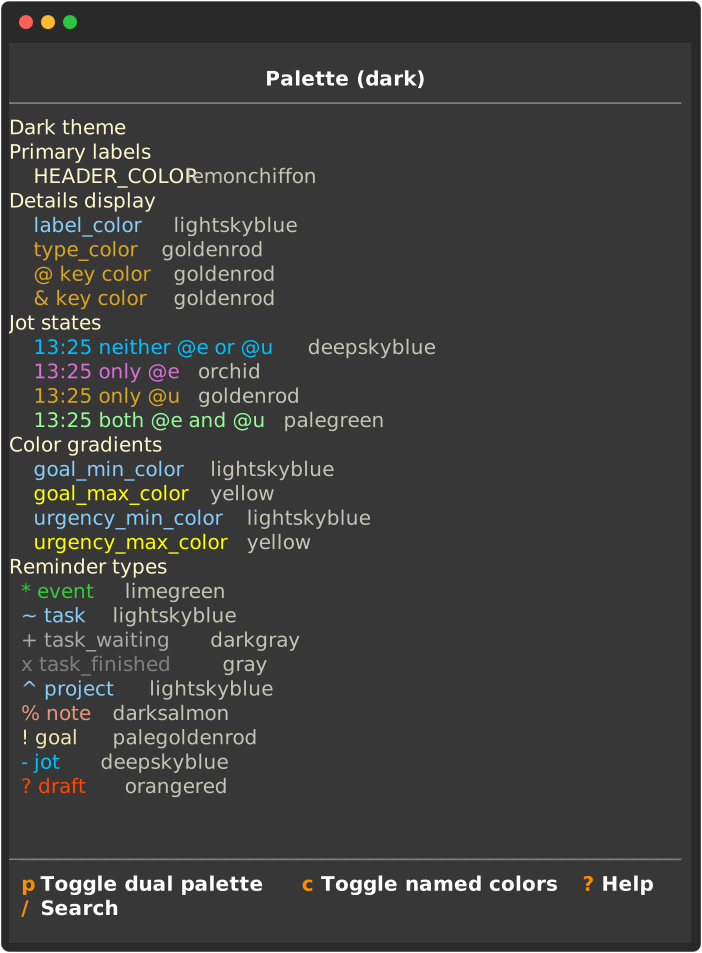
The opening view shows the current color settings for the currently selected theme which, in this case, is the dark theme.
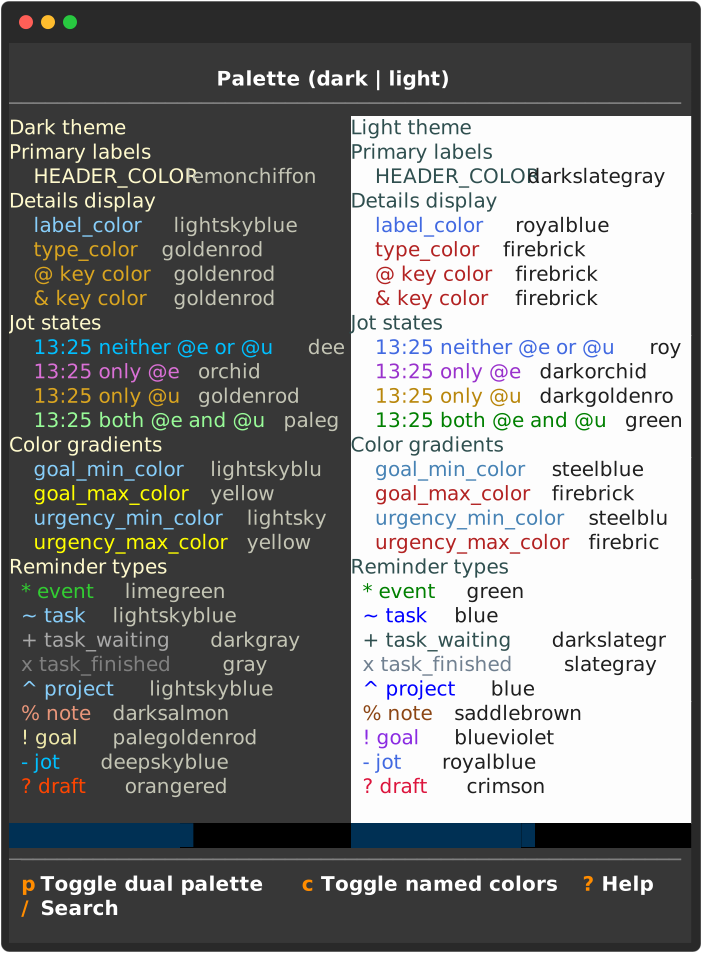
Pressing "p" toggles a dual display for both of the available themes with dark on the left and light on the right. In both cases, the colors reflect the current settings which, in the absence of customizations, are just the default settings for the two themes.
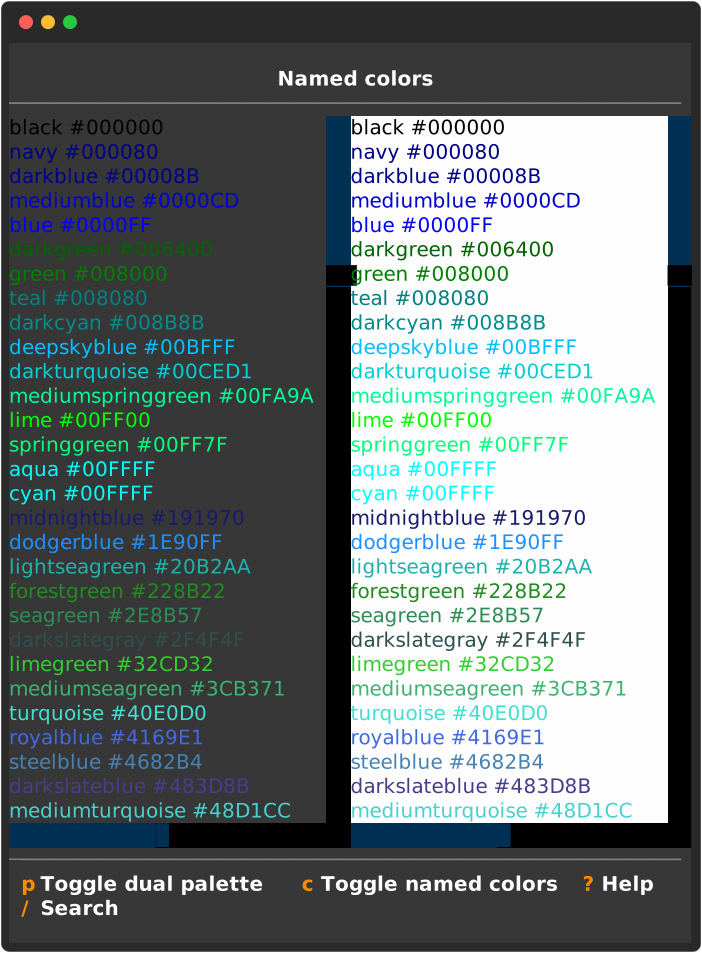
Pressing "c" toggles the display to show a list of the named colors against the backgrounds currently used for the dark and light themes.
The color for a setting can be customized in config.toml by first noting the theme in this section
  [ui]
  theme = "dark"
Then, for example, replacing this commented out section
  # [ui.palette.dark]
  # header_color = "#1f4b7a"
  # jot_full = "#040405"
with
  [ui.palette.dark]
  task_color = "dodgerblue"
would change the color for the task type for the current dark setting from "lightskyblue" to "dodgerblue". Note that either the color name or the hex value can be used.
2.18. Token Keys
The table below gives the complete list of both @-keys and, when applicable, their &-key attributes. It is generated from the source code automatically so it is always up to date.
| key | name | allowed | required | requires | multiple |
|---|---|---|---|---|---|
@+ |
rdate | *, ~, ^, %, x, ? | @s |
no | |
@- |
exdate | *, ~, ^, %, x, ? | @r |
no | |
@a |
alerts | *, ~, ^, %, x, ? | @s |
yes | |
@b |
bin | *, ~, ^, %, !, x, ? | yes | ||
@c |
context | *, ~, ^, %, !, x, ? | no | ||
@d |
details | *, ~, ^, %, !, -, x, ? | no | ||
@e |
extent | *, ~, ^, %, -, x, ? | no | ||
@f |
finish | ~, ^, !, x, ? | no | ||
@g |
goto | *, ~, ^, %, !, x, ? | no | ||
@i |
invitees | *, ? | no | ||
@k |
kompletions | !, ? | no | ||
@l |
label | *, ~, ^, %, !, x, ? | no | ||
@m |
mask | *, ~, ^, %, !, x, ? | no | ||
@n |
notice | *, ~, ^, %, !, x, ? | @s |
no | |
@o |
offset | *, ~, ^, x, ? | @s |
no | |
@p |
priority | ~, ^, x, ? | no | ||
@r |
recurrence | *, ~, ^, x, ? | @s |
yes | |
@r &E |
easterdays | *, ~, ^, x, ? | no | ||
@r &H |
hours | *, ~, ^, x, ? | no | ||
@r &M |
minutes | *, ~, ^, x, ? | no | ||
@r &W |
week numbers | *, ~, ^, x, ? | no | ||
@r &c |
count | *, ~, ^, x, ? | no | ||
@r &d |
monthdays | *, ~, ^, x, ? | no | ||
@r &i |
interval | *, ~, ^, x, ? | no | ||
@r &m |
months | *, ~, ^, x, ? | no | ||
@r &s |
set positions | *, ~, ^, x, ? | no | ||
@r &u |
until | *, ~, ^, x, ? | no | ||
@r &w |
weekdays | *, ~, ^, x, ? | no | ||
@s |
scheduled | *, ~, ^, %, !, -, x, ? | *, ! | no | |
@t |
target | !, ? | ! | no | |
@u |
use | -, ? | no | ||
@w |
wrap | *, ~, ^, %, x, ? | no | ||
@~ |
job | ^, x, ? | ^ | yes | |
@~ &a |
alert | ^, ? | @s |
yes | |
@~ &c |
context | ^, ? | no | ||
@~ &d |
details | ^, ? | no | ||
@~ &e |
extent | ^, ? | no | ||
@~ &f |
finish | ^, ? | no | ||
@~ &i |
unique id | ^, ? | no | ||
@~ &l |
label | ^, ? | no | ||
@~ &m |
mask | ^, ? | no | ||
@~ &r |
id and list of requirement ids | ^, ? | yes | ||
@~ &s |
scheduled | ^, ? | @s |
no |
3. Getting Started
3.1. Installing tklr
As usual with python applications, tklr can be installed from PyPI using either pip or pipx.
On some Linux distributions, however, the system python installation is managed by the operating system and protected from direct pip installs. This helps prevent conflicts with distro-managed python packages that the OS itself may depend on. In such cases, pipx is usually the best choice for command-line applications such as tklr because it installs each application in its own isolated environment while still making the tklr command available in your shell.
If you are using pip, the following command can be used either to install for the first time or to upgrade an existing installation:
pip install -U tklr-dgraham
With pipx, two different commands are needed. For the initial installation:
pipx install tklr-dgraham
To upgrade an existing installation:
pipx upgrade tklr-dgraham
3.2 Starting tklr for the first time
Tklr needs a home directory to store its files, most importantly these two:
- config.toml: An editable file that holds user configuration settings
- tklr.db: An SQLite3 database file that holds all the records for events, tasks and other reminders created when using tklr
Any directory can be used for home. These are the options:
- If started using the command
tklr --home <path_to_home>, tklr will use that directory. If it does not exist, you will be prompted to create it. The filesconfig.tomlandtklr.dbwill be created there if needed. -
If the
--home <path_to_home>is not passed to tklr then the home will be selected in this order:- If the current working directory contains files named
config.tomlandtklr.db, it will be used as home. - Else if the environment variable
TKLR_HOMEis set, it will be used as home (and created if missing). - Else if the environment variable
XDG_CONFIG_HOMEis set,${XDG_CONFIG_HOME}/tklrwill be used (and created if missing). - Else the directory
~/.config/tklrwill be used (and created if missing).
- If the current working directory contains files named
3.3. Configuration
The default settings are in config.toml in your tklr home directory together with detailed explanations for each setting.
4. Using the Command Line Interface
% tklr --help
Usage: tklr [OPTIONS] COMMAND [ARGS]...

  Tklr CLI – manage your reminders from the command
  line.

Options:
  --version      Show the version and exit.
  --home TEXT    Override the Tklr workspace directory
                 (equivalent to setting $TKLR_HOME).
  -v, --verbose  Enable verbose output
  --help         Show this message and exit.

Commands:
  add
  agenda   Display the current agenda: events for...
  alerts   List alerts scheduled for the rest of...
  check    Check whether an entry is valid...
  days     days(start: date = today(), end:...
  details  Display the details for a reminder...
  find     Search reminders whose subject or @d...
  finish   Mark a reminder finished, providing...
  migrate  Convert ETM reminders into a Tklr...
  query    Run an advanced query and list...
  ui       Launch the Tklr Textual interface.
  weeks    weeks(start: date = today(), end:...
Here is the main tklr help message. All the Commands other than ui belong to the CLI.
% tklr agenda --help
Usage: tklr agenda [OPTIONS]

  Display the current agenda: events for the next 3
  days with drafts and notices along with tasks
  ordered by urgency.

  Examples:   tklr agenda   tklr agenda --width 60
  tklr agenda --rich

Options:
  --width INTEGER RANGE  Maximum line width (good
                         for small screens).
  --rich                 Use Rich colors/styling
                         (default output is plain).
  --ids                  Append record ids in
                         parentheses for each
                         reminder row.
  --help                 Show this message and exit.
For the help information on a particular command, enter the name of the command and then append --help. E.g., here is the help for the agenda command.
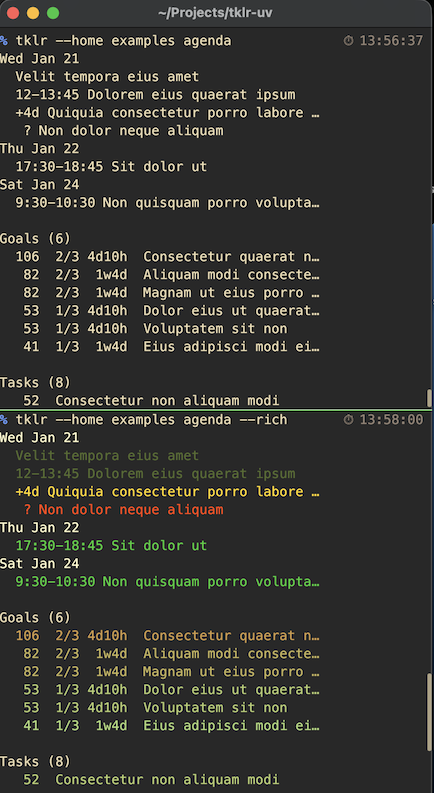
The --rich option is probably the least apparent. Using it adds rich colors to the format of the display. Here are examples of agenda with and without this argument.
5. Coming from etm
The basic entry format is essentially the same in tklr as it was in etm. There are a few changes to reminder types, attributes (specified with @-keys) and their modifiers (specified with &-keys) - these are documented below.
5.1 Datetime entry and @z
The attribute @z to specify the timezone for datetime entries in a reminder is no longer supported. The same purpose is now achieved by appending z TIMEZONE to the scheduled datetime attribute. E.g.,
@s 9a fri z US/Pacific
would indicate that “9a fri” is to be interpreted as an aware datetime in the “US/Pacific” timezone. Similarly z none would indicate that the preceding datetime is to be interpreted as a naive datetime.
5.2. Type Changes
| etm | tklr |
|---|---|
| * event | unchanged |
| - task | ~ task |
| ~ goal | ! goal |
| ! inbox | ? draft |
| - project | ^ project |
| % journal | % note |
5.3. Attribute Changes
| etm | tklr |
|---|---|
| @b beginby | @n notify |
| @c calendar | |
| @i index | @b bin |
| @j job | @~ task (project) |
| @k connect | |
| @k completions (goal) | |
| @n attendee | |
| @t tag | #hashtag |
| @t target (goal) |
5.4. @r modifier changes
| etm | tklr |
|---|---|
| &h hours | &H hours |
| &n minutes | &M minutes |
| &M months | &m months |
| &m monthdays | &d monthdays |
These tklr settings mirror standard usage in strftime.
5.5. @~ project task/job modifier changes
The modifiers used in @~ project task entries are significantly changed from the etm @j job entries. In tklr, the &r modifier is required and replaces both the &i id and the &p prerequisite modifiers. See projects for an example of the new usage.
5.6. Migrating reminders from etm to tklr
% tklr migrate --help Usage: tklr migrate [OPTIONS] ETM_DIR Convert ETM reminders into a Tklr batch-entry file for the current home. Migrated reminders will be extracted from the ``etm.json`` file in ETM_DIR . Example: tklr --home ~/.config/tklr migrate ~/etm Options: --outfile FILE Defaults to [--home]/etm.txt --secret TEXT Secret from etm cfg.yaml used to decode @m values. Absent a valid 'secret', @m values will be left encoded. (default: None) --record-ids Append @# tags with the original etm record ids. (default: False) --include-archive Include archived etm entries. (default: False) --types [*|-|%|~|!] Restrict migration to specific etm item types (default: all). --help Show this message and exit.% tklr add --help Usage: tklr add [OPTIONS] [ENTRY]... Options: -f, --file PATH Path to file with multiple entries. --batch Use editor to create multiple entries separated by blank lines. --help Show this message and exit.
The tklr migrate command can be used to export your etm reminders from etm.json to a text file from which they can be imported into </em>tklr</em>.
Once the text file is available, the tklr add command can be used to import the reminders from the text file into tklr.
Here's an example of the complete process for the case in which the etm home directory is ~/etm and the tklr home directory is ~/tklr:
% tklr --home ~/tklr migrate ~/etm
% tklr --home ~/tklr add -f ~/tklr/etm.txt
6. Developer Guide
This section is for anyone interested in helping with the development of tkrl. It walks you through setting up a development environment for tklr using uv and a local virtual environment with a clone of the github repository.
✅ Step 1: Clone/Update the repository
This step will create a directory named tklr-dgraham in your current working directory that contains a clone of the github repository for tklr.
git clone https://github.com/dagraham/tklr-dgraham.git
cd tklr-dgraham
Later, to update your local copy of Tklr to the latest version:
# Navigate to your project directory
cd ~/Projects/tklr-dgraham  # adjust this path as needed

# Pull the latest changes from GitHub
git pull origin master

# Reinstall in editable mode (picks up new code and dependencies)
uv pip install -e .
✅ Step 2: Install uv (if needed)
which uv || curl -LsSf https://astral.sh/uv/install.sh | sh
✅ Step 3: Create a virtual environment with uv
This will create a .venv/ directory inside your project to hold all the relevant imports.
uv venv
✅ Step 4: Install the project in editable mode
uv pip install -e .
✅ Step 5: Use the CLI
You have two options for activating the virtual environment for the CLI:
☑️ Option 1: Manual activation (every session)
source .venv/bin/activate
Then you can run:
tklr --version
tklr add "- test task @s 2025-08-01"
tklr ui
To deactivate:
deactivate
☑️ Option 2: Automatic activation with direnv (recommended)
Install direnv
brew install direnv        # macOS
sudo apt install direnv    # Ubuntu/Debian
Add the shell hook to your ~/.zshrc or ~/.bashrc
eval "$(direnv hook zsh)" # or bash
Restart your shell or run source ~/.zshrc.
In the project directory, create a .envrc file
echo 'export PATH="$PWD/.venv/bin:$PATH"' > .envrc
Allow it
direnv allow
Now every time you cd into the project, your environment is activated automatically and, as with the manual option, test your setup with
tklr --version
tklr add "- test task @s 2025-08-01"
tklr ui
You’re now ready to develop, test, and run tklr locally with full CLI and UI support.